How to Configure VNC Protection in RdpGuard
Run RdpGuard on the Windows computer that hosts the VNC server. Select the server software installed there, even if users connect with another brand of Viewer. The monitor follows new events in the local Application log and works with custom listening ports.
Enable VNC protection
Open RdpGuard Dashboard as an administrator. Under Monitored protocols, click VNC.
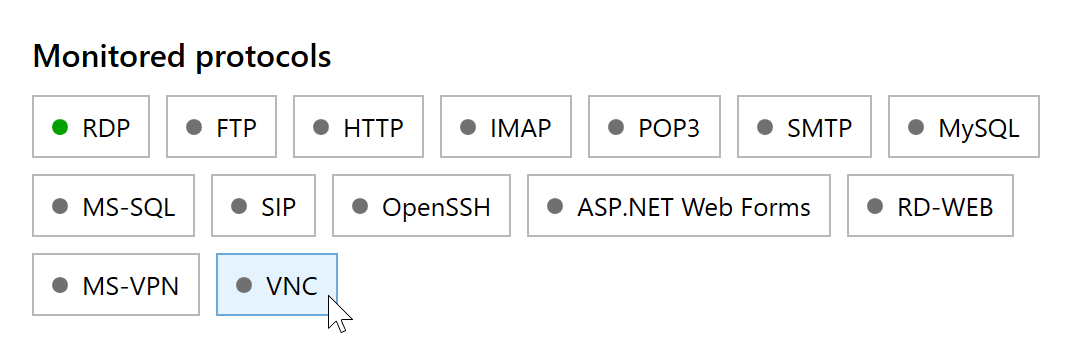
Click VNC to open its protection settings. The VNC Protection Settings dialog opens.
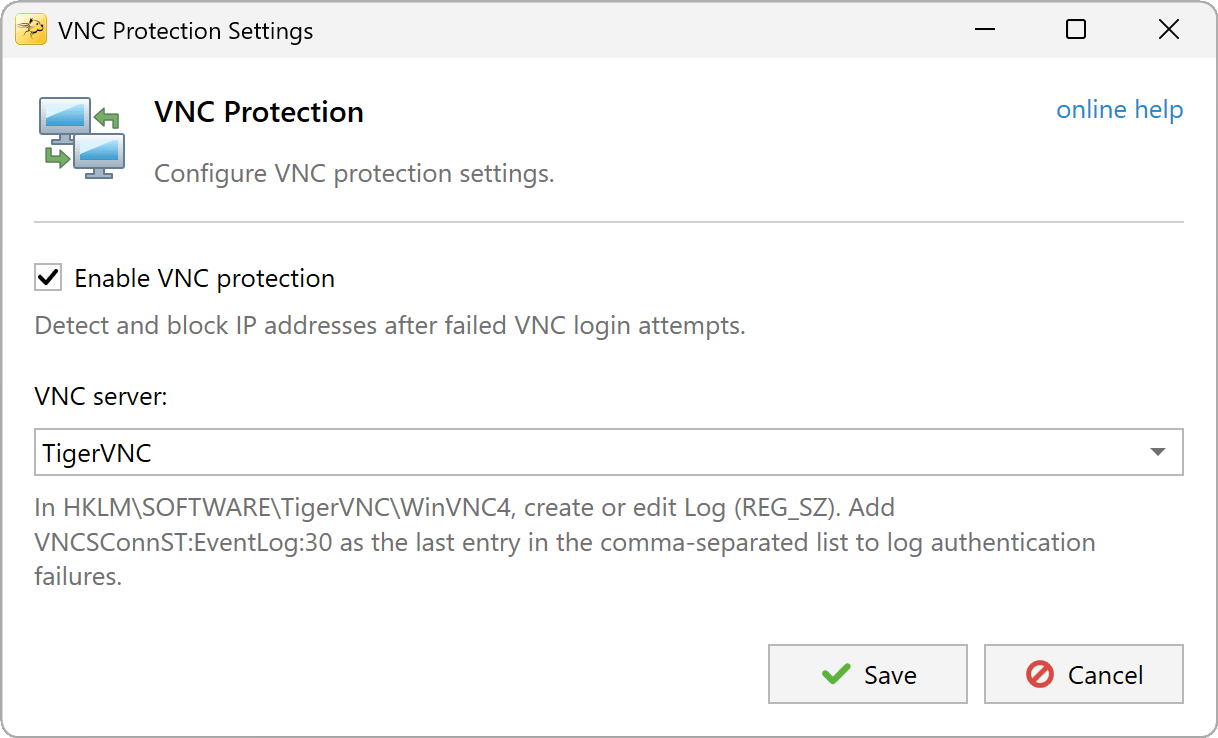
Selecting TigerVNC displays the logging rule its Windows server needs. Enable VNC protection - Turn on monitoring for this host.
VNC server - Select the installed server, then click Save to apply the change. Wait for the Dashboard to finish restarting the RdpGuard service.


VNC server settings
TightVNC and UltraVNC
Both servers record failed logins in the Windows Application log. After saving your settings in RdpGuard, test a failed login.
RealVNC Connect
RdpGuard protects direct connections to RealVNC Server. To test protection, enter the server's IP address in RealVNC Viewer. Connections through the cloud relay are not covered. RealVNC's guide to connection logs.
TigerVNC
To record failed logins, open Registry Editor on the TigerVNC server and go to HKLM\SOFTWARE\TigerVNC\WinVNC4.
- If the
Logstring already has a value, append,VNCSConnST:EventLog:30to it. - If
Logis missing or empty, use the following value. Choose String Value (REG_SZ) when creating it.
*:EventLog:0,VNCSConnST:EventLog:30Configure from the command line
From an elevated command prompt, choose a server and enable monitoring. This example selects TightVNC. The other accepted values are ultravnc, realvnc and tigervnc. Restart the RdpGuard service after changing settings through the CLI.
rdpguard-cli /vnc server set tightvnc
rdpguard-cli /vnc enabled set on
rdpguard-cli /vnc server get
Verify detection and blocking
From a second computer, connect to the VNC server and enter an incorrect password once. In RdpGuard, open View, Show event log and look for a failed login from that computer's IP address.
If the attempt is missing, check Event Viewer, Windows Logs, Application on the VNC server for a failed login at the same time. Also check which server you selected in RdpGuard.
To test blocking, use a computer outside the whitelist and keep a separate connection for administration. Check the attempt limit and block duration under Tools, Options, General, or in your protocol rule. Once the limit is reached, look for the test IP in the Dashboard. If you block only selected ports, include the VNC listening port, such as TCP 6400.
See Also
RdpGuard protects:
- Remote Desktop
- MS-SQL Server
- FTP Protocol
- HTTP Protocol
- IMAP Protocol
- POP3 Protocol
- SMTP Protocol
- IIS Web Login
- MySQL Server
- ASP.NET Forms
- RD Web Access
- VoIP (SIP Protocol)
- SSH Protocol
- MS VPN (RRAS)
- VNC Protocol
"This sotware is really great. It's a relief. Because my server is constantly under attack. Thanks RdpGuard" - Joaquim De Sousa Marques
"Nice product. I used to implement something similiar in a low-tech and cumbersome manner via a script called TSBlock (not mine). This makes it much easier and is well worth the pricetag for SMB's." - J. Johnson
"Absolutely amazed at your product. We are a church in the North Dallas area, and I discovered this morning multiple failed logon attempts via our Remote Access Server. A friend suggested your product, so I immediately downloaded the trial. It had a list of about five blocked IP addresses in minutes, and that was enough to lead me to push the BUY button. Over the past 10-15 minutes the list is now about thirty with at least a third being international attempts to break into our system. Thanks for a great product. You may have just saved us much grief." - John Hallford
"Love the software. RDP on our Windows servers is just ridiculous. We would block it in the router but we have lots of old-time customers that would have issues." - Scott Hirsch
"Love the software! Makes it easier than tailoring VB Scripts!!" - Nick Brennan
"It's a great product - really stopping those RDP attackers :-)" - Dave, UK
"First of all: Your application is very (!!!) useful and I like it very much securing my 2012 R2 server. RdpGuard is the best solution, I found on the market and after 10 minutes of testing it I ordered the fully-featured version. :-)" - Carsten Baltes